In this guide
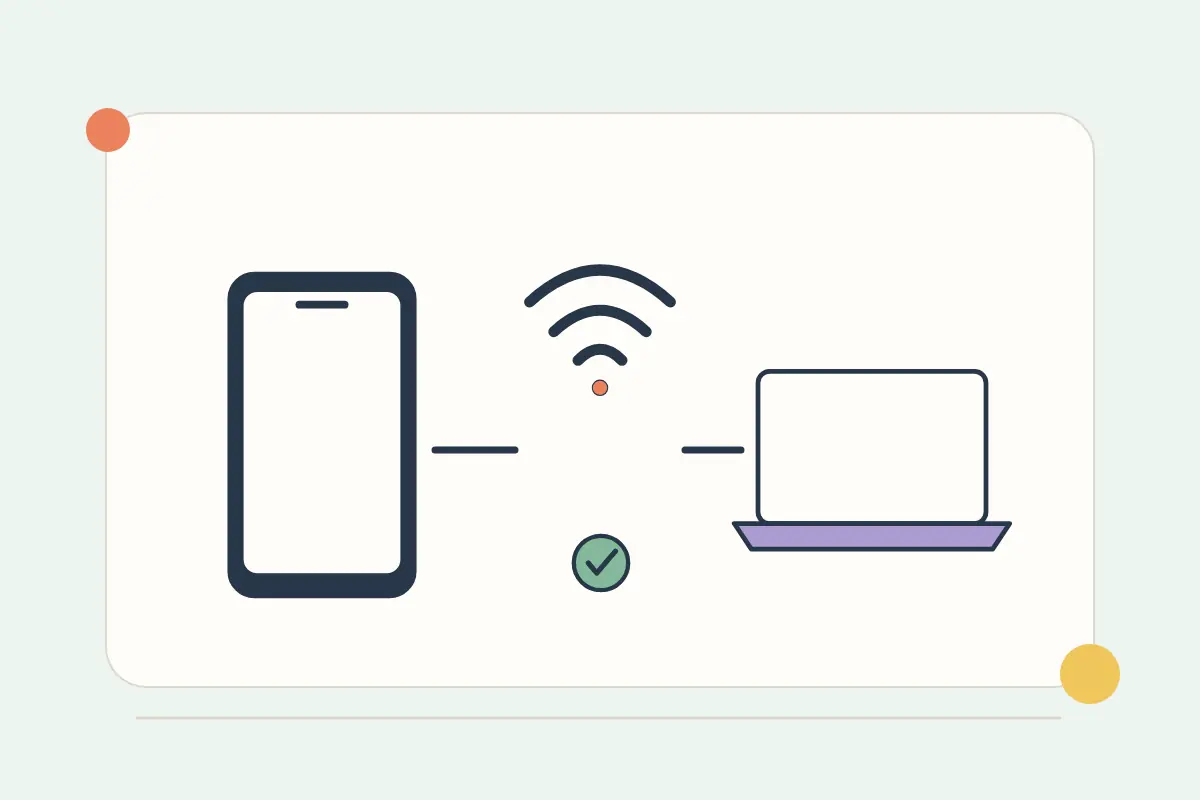
Start by checking whether mobile internet works on the phone itself. If it does not, fix that connection first. A hotspot cannot share a working mobile-data connection that the phone does not currently have.
If the phone browses normally but the laptop or second phone cannot connect, investigate tethering permissions and the connection between the two devices. These are different symptoms and benefit from a different checklist.
Identify the exact failure
| Symptom | Start here |
|---|---|
| No internet on the phone | Plan status, coverage, selected data line and the plan's roaming instructions. |
| The hotspot option is missing | Carrier support, plan permissions and device settings. |
| The other device cannot join | Network name, password, visibility and compatibility settings. |
| The device joins but has no internet | The source mobile connection, tethering conditions and plan-specific APN instructions. |
The eSIM troubleshooting assistant keeps these paths separate. Choose the symptom you actually see, and note whether other internet activity works on the source phone.
Confirm that your package supports the use you need
Check the selected package's current tethering and fair-use conditions. A data allowance does not itself explain every sharing restriction. Google notes that some mobile carriers limit or charge extra for tethering; use the terms of your own travel plan.
For a laptop work session, include the applications that may run in the background. Cloud synchronisation, operating-system updates and video meetings can consume data unexpectedly. Compare your likely usage with the eSIM data calculator before assuming a small phone-oriented package is enough.
On iPhone, check the sharing settings
Review Personal Hotspot, whether other devices are allowed to join, and the password being entered on the receiving device. Apple's current help explains its connection and compatibility options. Check mobile data on the intended line as well as the hotspot toggle.
Keep the devices nearby while testing and try a single receiving device first. If the option is missing or cannot be enabled, check plan support with the provider. Use carrier-supplied APN instructions if they apply; repeatedly changing unrelated fields can make the original data connection harder to diagnose.
On Android, use the instructions for your model
Android menu names vary. Look for Hotspot and Tethering or a similarly named connection setting. Check the network name, password, the selected mobile-data SIM and any setting that automatically disables an unused hotspot.
Follow the device manufacturer's instructions for a compatibility change. Available Wi-Fi, Bluetooth and USB sharing methods can vary by phone and receiving device. Test one method at a time so you know which change affected the result.
When the hotspot connects but internet still fails
- Turn the hotspot off and confirm the phone can load a normal webpage over mobile data.
- Check remaining allowance, validity and whether a speed or fair-use condition has applied.
- Confirm the travel eSIM is still the selected data line.
- Review the plan's official APN or manual-network instructions, if any.
- Restart the devices as appropriate and reconnect with the correct password.
- Contact support with the exact symptom and checks already completed.
Keep the eSIM installed unless the provider specifically advises removal. A new installation is not a general remedy for every hotspot issue.
Plan sharing before the trip
Read separate family plans versus hotspot sharing before relying on one phone for everyone. Check device battery needs, the owner's availability and what the group will do if it separates during the day. Use the multi-country eSIM finder when the route crosses several destinations.
Sources and further checks
Checked on 27 October 2026. Product availability and individual terms can change.